One-Stop Download & Synthesis: Professional Stabilization & Deflickering, Instant Time-Lapse Video Production (Farpov Cam - Ultimate v1.6)
2026-01-05 18:05:10
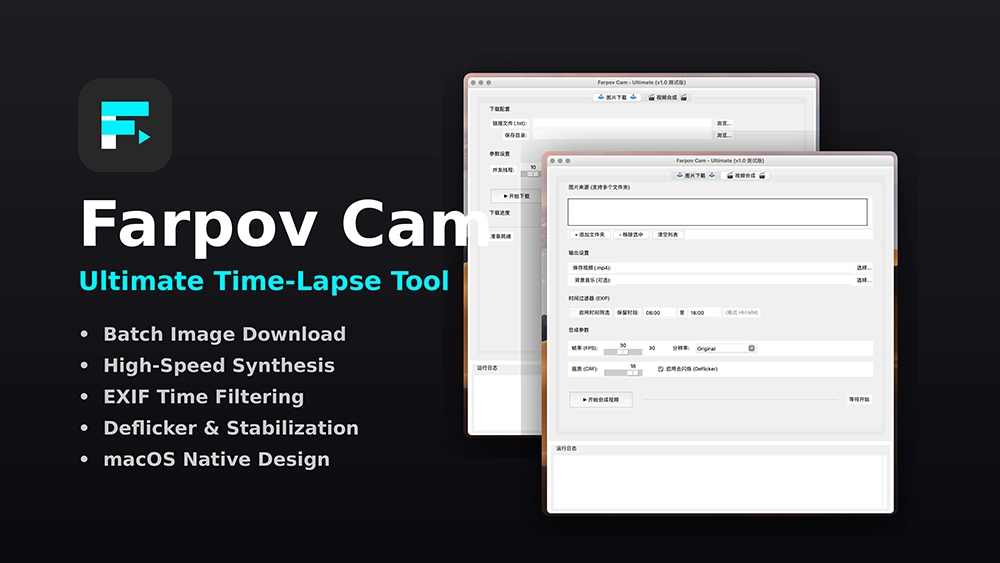
A smart desktop tool specifically developed by Farpov Time-Lapse Camera that supports both "Batch Image Downloading" and "Image Sequence to Video Synthesis." Designed for scenarios such as construction time-lapse, surveillance snapshots, photo albums, and project summaries. It is free to use and allows for the instant creation of Time-Lapse videos.
Highlights:
Concurrent Downloading: No limit on the number of download links.
Error Handling: Support for retrying failed downloads and exporting failed links.
Video Synthesis: Supports custom CRF quality, resolution, and FPS.
Professional Processing: Built-in Professional Deflicker and Stabilization (with adjustable crop ratio).
Filtering: EXIF Time Filtering support.
Audio: Supports merging background music.
Interface Overview:
Main Window: Top menu for language switching (CN/EN), Tabs (Image Download, Video Synthesis), and a Log area at the bottom.
Image Download Page: Link file selection, save directory, concurrent threads & timeout settings; Start/Stop, clear statistics, export failed, retry failed; Progress bar with Success/Failure/Skip statistics.
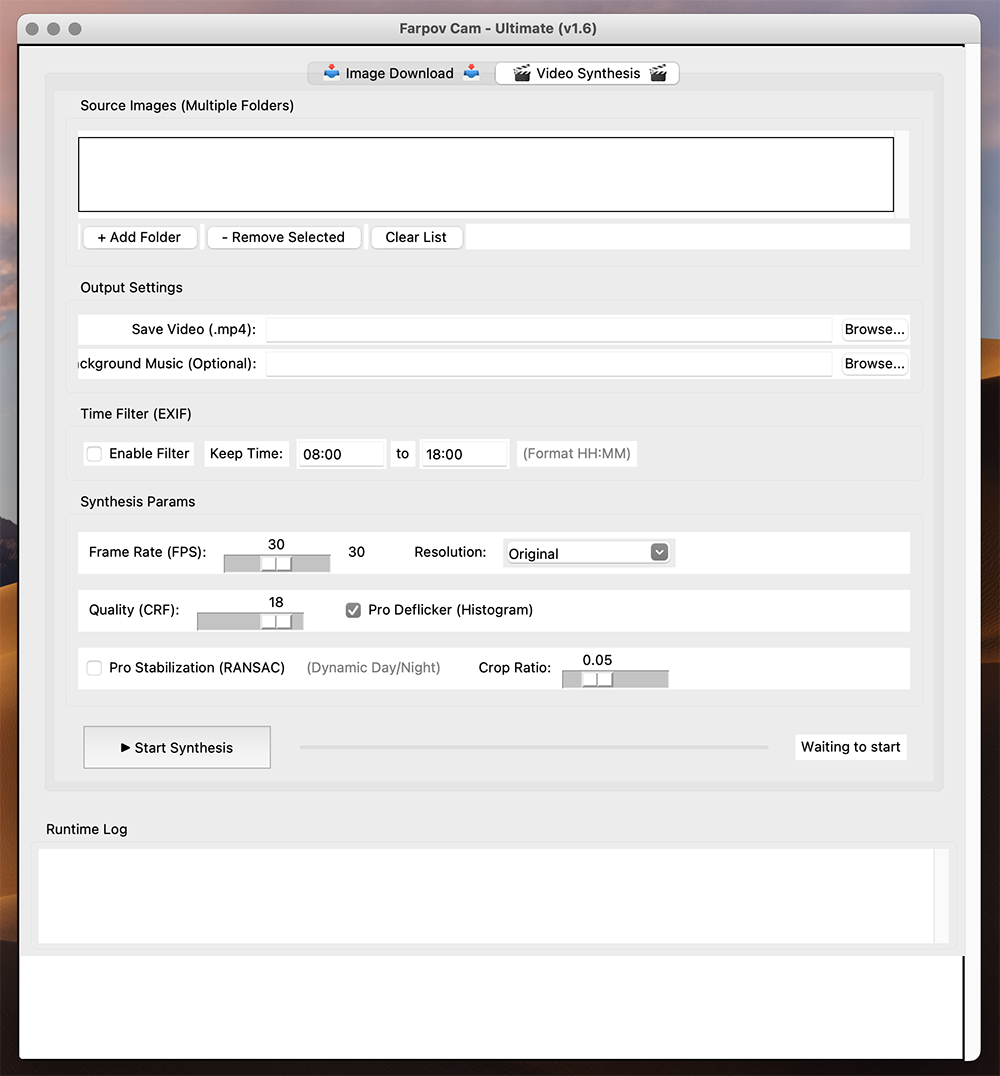
Video Synthesis Page: Image source directory list (multi-select supported); Save video path & background music; Time filter (EXIF time range); FPS/Resolution/CRF; Deflicker, Stabilization, Crop Ratio slider; Synthesis progress & status.
About Dialog: Version info and update notes (v1.6: Added "Stabilization Crop Ratio" adjustment).
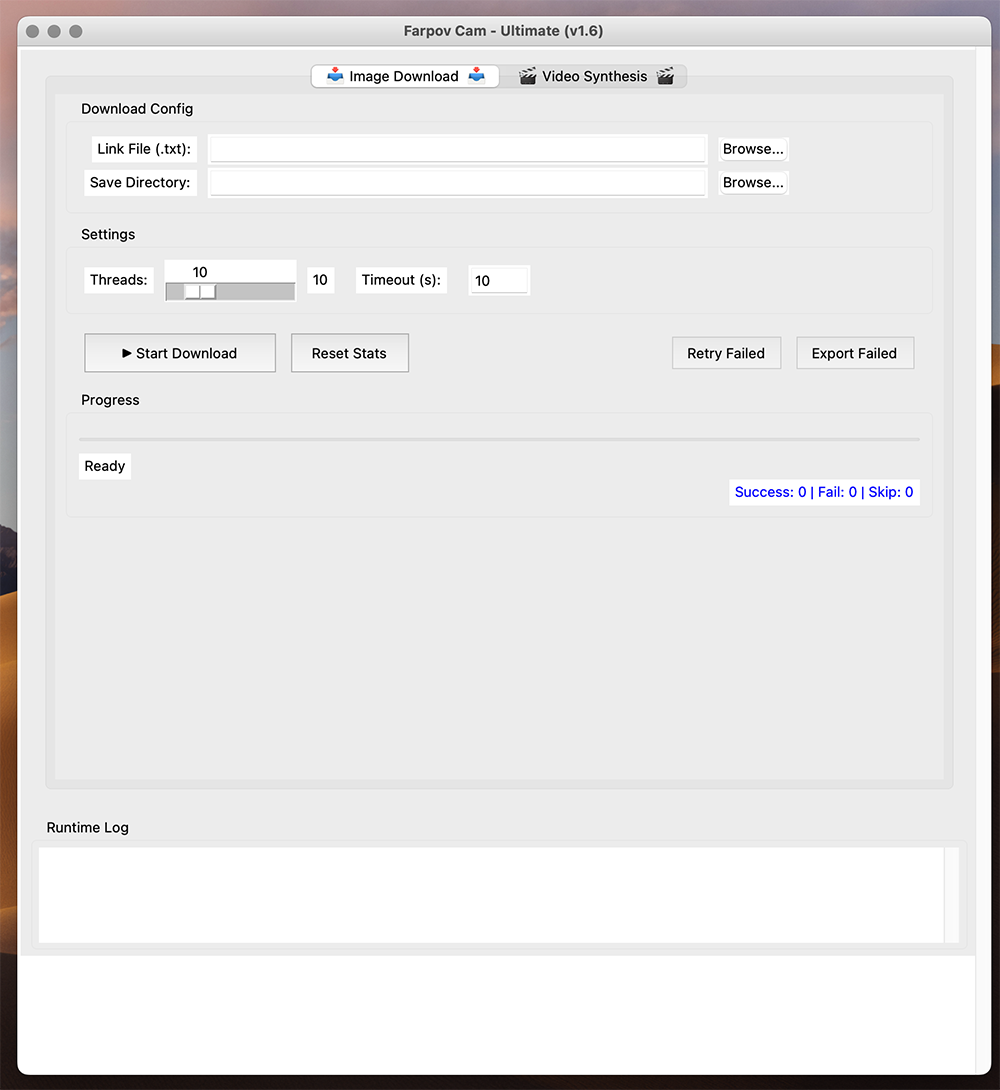
Quick Start: Image Download
Prepare a .txt file: Farpov camera users can one-click download all image links from the camera. The file should contain one image URL per line (supports http/https).
Settings: On the "Image Download" page, select your "Link File (.txt)" and "Save Directory." Set "Concurrent Threads" and "Timeout (seconds)."
Start: Click "Start Download" and monitor the "Run Log," "Download Progress," and "Success/Failure/Skip" statistics.
Finish: After downloading, if there are failed items, you can "Export Failed" links or click "Retry Failed" for a second attempt.
Quick Start: Video Synthesis
Add Source: On the "Video Synthesis" page, add one or more image folders (supports jpg/jpeg/png).
Output Settings: Set "Save Video (.mp4)" path and optional "Background Music." Configure "FPS / Resolution / CRF."
Pro Features: Check "Pro Deflicker" and "Pro Stabilization" as needed. Use the "Crop Ratio" slider to control edge cropping after stabilization (Suggested starting point: 0.05 = 5%).
Time Filter: You can enable "Time Filtering" to keep only specific EXIF time ranges (e.g., 08:00–18:00), which is suitable for day-scene footage.
Start: Click "Start Video Synthesis" to view progress, logs, and final output. If music is selected, the audio track will be automatically merged at the end.
Professional Functions Explained
Pro Deflicker: Reduces temporal brightness jitter and exposure drift. Ideal for scenes with changing clouds or flickering lights.
Pro Stabilization: Records displacement/rotation trajectories and applies sliding average smoothing, followed by image stabilization and dynamic cropping. Includes "Day/Night" dual-mode parameters (Night mode uses specific thresholds and area masks).
Crop Ratio: To avoid black edges after stabilization, the image is cropped from the center and resampled to the original size. Range: 0–20%. A larger ratio results in a more stable image but a smaller field of view.
Parameter Suggestions
FPS: Select 24/25/30 for smooth footage; select 15 for event recording to save space.
Resolution: "Original" keeps source size; 1080p is suggested for platform compatibility; 4K for large screen displays.
Quality (CRF): Range 15–35. Lower values mean higher clarity but larger file sizes; 18 is a good high-quality compromise.
Stabilization Crop: Increase the crop ratio if edge shaking or black borders appear (e.g., 5% → 8% → 10%). For night footage, more conservative smoothing radius and mask settings are recommended (already built-in).
Advanced Usage
EXIF Time Filtering: The first tool specifically designed for construction time-lapse video production that filters images by time. It retains only images taken within a set interval and supports cross-midnight ranges (e.g., 22:00–06:00). When filtering causes continuous frame skipping, the sliding window for deflickering/stabilization automatically resets to maintain stable output.
Background Music Merging: If an audio file is selected, it will automatically add background music to the video. This is extremely user-friendly for construction managers who need to produce videos quickly and may lack video editing skills.
Download Link: https://www.farpov.com/a/service/zl/











 WeChat
 WhatsAPP